
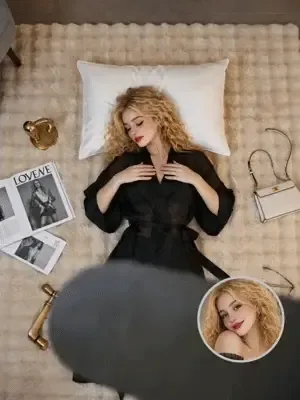
AI Ceiling Fan Transition
View template guidePlan outfit changes around a fan blade crossing the foreground. Use your own adult subject image, then edit the clothing details while keeping a fixed overhead view.
Open in generator
AI Shorts · Everygen alternative
Everygen AI Shorts Studio is a text-first, single-clip generator: choose a format or write your own prompt. AI Shorts is an independent alternative where you can write a prompt, upload a reference image or use a template. For multiple shots, start on the canvas.
Everygen AI Shorts Studio generates individual video clips from text. It offers formats as a starting point, while also letting you skip that choice and write your own prompt. Its built-in assistant can turn an idea into a prompt or suggest a format. Voiceover and captions are separate tools elsewhere on the Everygen platform, rather than a complete finishing workflow inside this generator.
AI Shorts is an independent product with no affiliation to Everygen. Here, you can describe a scene directly, upload a reference image to guide the first frame, or open a template with an editable prompt. A template supplies a concrete starting scene; your own image supplies the subject. You can change the action or framing before generating a clip.
For a story with several shots, use the AI Shorts canvas to organize images, characters and storyboard assets before generating motion. Begin with one clear moment, such as a character turning toward a window. Once that shot works, plan what the viewer should see next. This keeps a single clip focused while giving a longer short a deliberate sequence.
Compare how each generator starts a clip, helps you describe it and handles the steps around generation. Choose a workflow for the scene you want to make, then complete the edit with the finishing tools you need.
| Creative decision | Everygen AI Shorts Studio | AI Shorts |
|---|---|---|
| Starting point | Choose a format or write your own prompt | Write a prompt, upload a reference image or use a template |
| Prompt help | Built-in assistant writes prompts from ideas and suggests formats | Templates include prompts you can edit |
| Duration | Auto duration is determined by the prompt | Choose a duration supported by the model; see the credit estimate before generation |
| Video models | Several video models to choose from | Several video models to choose from, including MiniMax H3 and Seedance |
| Account | Sign up before adapting an example video | Write a prompt and open a template without an account; sign in before uploading your own media or generating a video |
| Sound and captions | Voiceover and captions are separate platform tools | No voiceover or caption tools; finish them in your edit. Seedance has a sound switch in the workspace |
Choose a scene, open its guide and bring your own subject. These three templates need an uploaded subject image and produce a 3:4 clip. The generator opens with a prompt you can edit; adjust the action and review the settings before creating your version.
Plan outfit changes around a fan blade crossing the foreground. Use your own adult subject image, then edit the clothing details while keeping a fixed overhead view.
Open in generator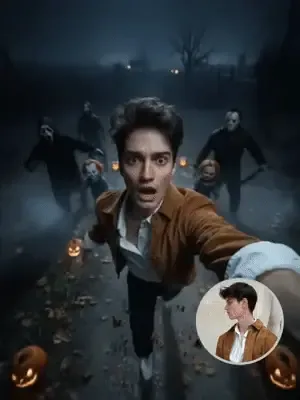
Give your subject a handheld selfie chase through a foggy night scene. Edit the running action and atmosphere, keeping one clear reaction for the viewer to follow.
Open in generator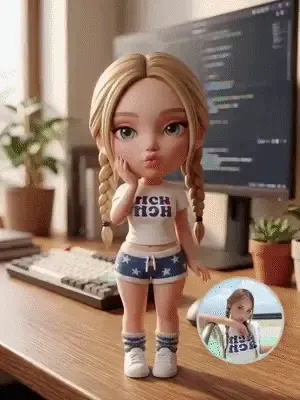
Turn a character image into a small soft toy on a desk. Describe one gentle squeeze and release so the movement has a clear beginning and ending.
Open in generator
01 · Reference images
A reference image settles choices that can be difficult to describe together: the silhouette of an object, the direction of the light and the arrangement of a scene. Create that frame with an image model, or upload your own image, then move into a video task. For a vertical short, prepare the composition so the important subject stays inside the portrait frame.
Use the motion prompt to describe what changes after the first frame. A vase might rotate slowly as the camera moves closer; a person might turn toward a window. Keeping one main action makes the result easier to evaluate. Review object shape and background detail before building more scenes around the clip.

02 · Storyboard planning
A short story still needs a sequence. On the AI Shorts canvas, develop images and storyboard assets around the beats of your script. An arrival, a pause and a reaction each need a different composition. Looking at those frames together helps you spot a missing transition before spending time on motion.
Keep a character reference nearby and reuse the visual details that define the scene. If a close-up needs a different expression, revise that image or shot instead of rewriting the whole idea. References help communicate continuity, but review clothing, facial details and surroundings across outputs. A storyboard is especially useful for recurring characters, illustrated stories and small dramatic scenes.
03 · Video generation
Use text-to-video when you want to explore a scene without making a starting image. Describe the subject, action, setting and camera movement in that order. For a rooftop shot, the character turning around and the camera slowly approaching are more useful instructions than a string of quality adjectives.
The creator above opens MiniMax H3 with a vertical text-to-video setup. You can upload a starting image instead, or open the workspace to choose another supported model. Generate a manageable shot, inspect the movement, then continue with the next beat. For longer short-form stories, plan multiple clips and leave room in your edit for a hook, transitions and an ending.
An Everygen AI alternative should help you make the next creative decision. In AI Shorts, choose a video model for motion or an image model for the frame you want to animate. Keep the same idea while testing a different visual approach.
Text and image to video
Start from a scene description or a reference image. Use the workspace controls to choose the duration and resolution for your clip. The page creator starts with a short shot so you can establish the movement before developing a longer sequence.
Video scene development
Explore another video workflow using text or image inputs. Decide whether your shot begins with a prompt or an established frame, then use the options available for that mode. Keep the subject and action consistent when comparing takes so the difference is easier to judge.
Keyframes and visual concepts
Develop scene images before adding motion. Use text-to-image for an initial composition or image editing to refine a reference. A useful keyframe establishes the subject, lighting and crop, giving you something concrete to assess before you move into a video generation task.
Reference-led image creation
Build character, object and setting references with an image workflow. Carry a selected image into the next scene or use it as a starting point for a video. Compare outputs carefully when continuity matters; references guide the result rather than guaranteeing an identical character in every frame.
Write the subject and one clear action. For a multi-shot idea, open the project studio and outline the beginning, change and ending. Decide which image the viewer needs to understand first, before adding style or camera instructions.
Choose a portrait ratio for a vertical text-to-video clip. If you start from an image, prepare its crop first and upload it as a reference. Keep faces and product details away from the edges where platform overlays may cover them.
Continue into the workspace, sign in if needed, and review the model settings and displayed credit cost before generating. Check movement, composition and subject details in the result. Change the instruction that caused the problem before making another take.
Repeat for the next shot, keeping your references and visual choices consistent. Select the clips that support the story, then finish timing, sound and captions in your editing workflow. Watch the complete short at phone size before publishing it.
Create scenes for a narrated story without filming a presenter. Start with a small cast and a recognizable setting, then give each clip a clear purpose. A reaction shot can carry emotion; an establishing shot can explain where the story takes place. Plan narration around those beats during the edit.
Use your own product image to explore settings, reveal shots and visual hooks. A close-up can introduce a material, while a wider scene supplies context. Review the product's shape, label and details in each output before using it in an ad, especially when an accurate depiction matters.
Compose for a small vertical screen and make the opening action readable quickly. Keep the main subject large enough to follow, then vary the framing across later shots. Use the same assets to explore a second opening or ending without rebuilding every part of the idea.
No. AI Shorts and Everygen are independent products with no affiliation. This page compares Everygen AI Shorts Studio with the creation workflow in AI Shorts; it does not give you access to an Everygen account or its tools.
In Everygen AI Shorts Studio, you can choose a format or skip it and write your own prompt. In AI Shorts, you can start by describing a scene, adding a reference image or opening a template. Templates provide editable prompts, so you can change the subject, action and framing yourself.
Everygen provides voiceover and captions as separate platform tools, rather than a finishing workflow built into Everygen AI Shorts Studio. AI Shorts does not provide voiceover or caption tools; complete those in your editing workflow. Seedance offers a sound switch in the AI Shorts workspace, which is separate from adding narration and subtitle timing.
Everygen AI Shorts Studio uses Auto duration, with the clip length determined by the prompt. In AI Shorts, select one of the durations supported by your chosen model and review the credit estimate before generating. For a planned edit, choosing the length lets you allocate time to the opening action, reaction or transition before making the clip.
Everygen requires registration before you can adapt its example videos. In AI Shorts, open one of the templates on this page, upload your own subject image and edit the prompt. You can write a prompt and open a template without an account; the workspace asks you to sign in before your own media is uploaded or before a video is generated. These templates produce 3:4 clips.
In Everygen, check the displayed cost for the model and clip you intend to generate. In AI Shorts, review the credit estimate before generation and the plan details on the pricing page. For either workflow, budget for the number of shots, their duration, reference preparation and likely retakes. The platforms use their own credit systems, so one credit is not a shared unit of cost.
Everygen AI Shorts Studio offers several video model choices. In AI Shorts, keep your scene brief and reference image while choosing another supported model in the workspace. The inputs and settings can differ, so adjust them before generating. Compare the composition and movement against the same shot brief, then keep the take that serves your story.
Bring one idea or a reference image to AI Shorts. Establish the frame, direct the action and turn the result into the next part of your short video.